Create QR Code for PDF: Complete 2026 Guide
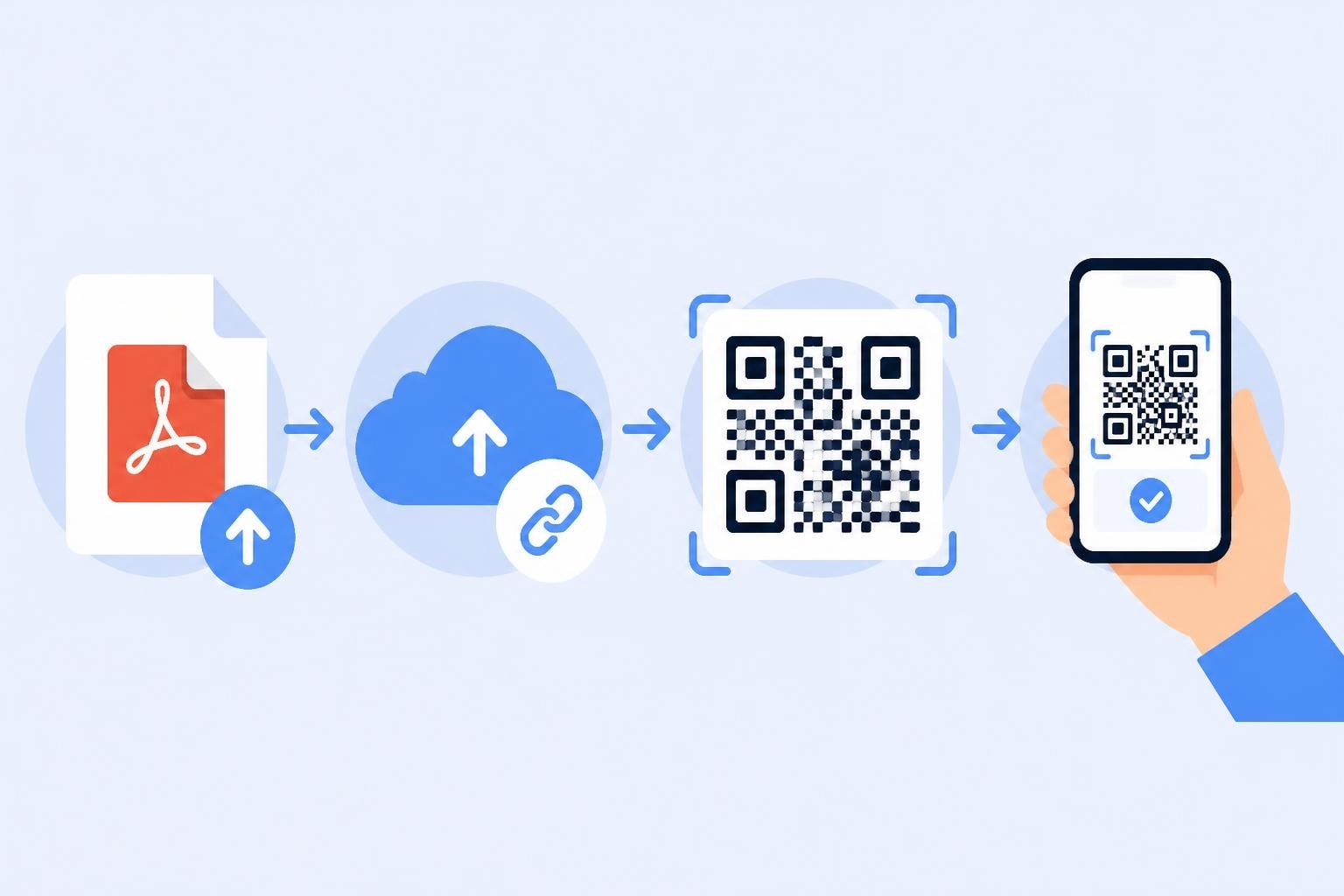
Quick sharing of documents has become essential in modern business operations. Whether you're distributing product catalogs at trade shows, sharing restaurant menus, or providing event programs, the ability to create QR code for PDF files transforms physical materials into digital gateways. This technology bridges the gap between print and digital, allowing anyone with a smartphone to access your documents instantly without typing URLs or searching through email attachments.
Understanding QR Codes and PDF Distribution
QR codes (Quick Response codes) function as two-dimensional barcodes that store information in a pattern of black squares on a white background. When you create QR code for PDF documents, you're encoding a URL that points to your file's online location. The QR code itself doesn't contain the PDF-it contains the web address where the PDF lives.
This distinction matters because PDF files are typically too large to embed directly into a QR code. Most QR codes for PDFs range from 50 to 300 bytes, while PDF files can easily exceed several megabytes. The solution is straightforward: host your PDF online and encode that hosting URL into the QR code.
The Mechanics Behind PDF QR Codes
When someone scans your QR code, their smartphone camera or QR reader app decodes the embedded URL and opens it in their mobile browser. The browser then downloads or displays the PDF. This process happens in seconds, but several technical considerations affect the user experience.
Key technical factors include:
- URL length: Shorter URLs create simpler QR codes with fewer modules (squares), making them easier to scan from a distance
- HTTP protocol: Using HTTPS ensures secure transmission and builds user trust
- Mobile optimization: The hosting page should render properly on smartphones
- File size: Large PDFs may cause slow loading on mobile networks
According to RFC 9205, practical URL limits and HTTP behavior should guide your decisions about what data to include in QR-linked URLs. Consider using URL shorteners to create compact, scannable codes.
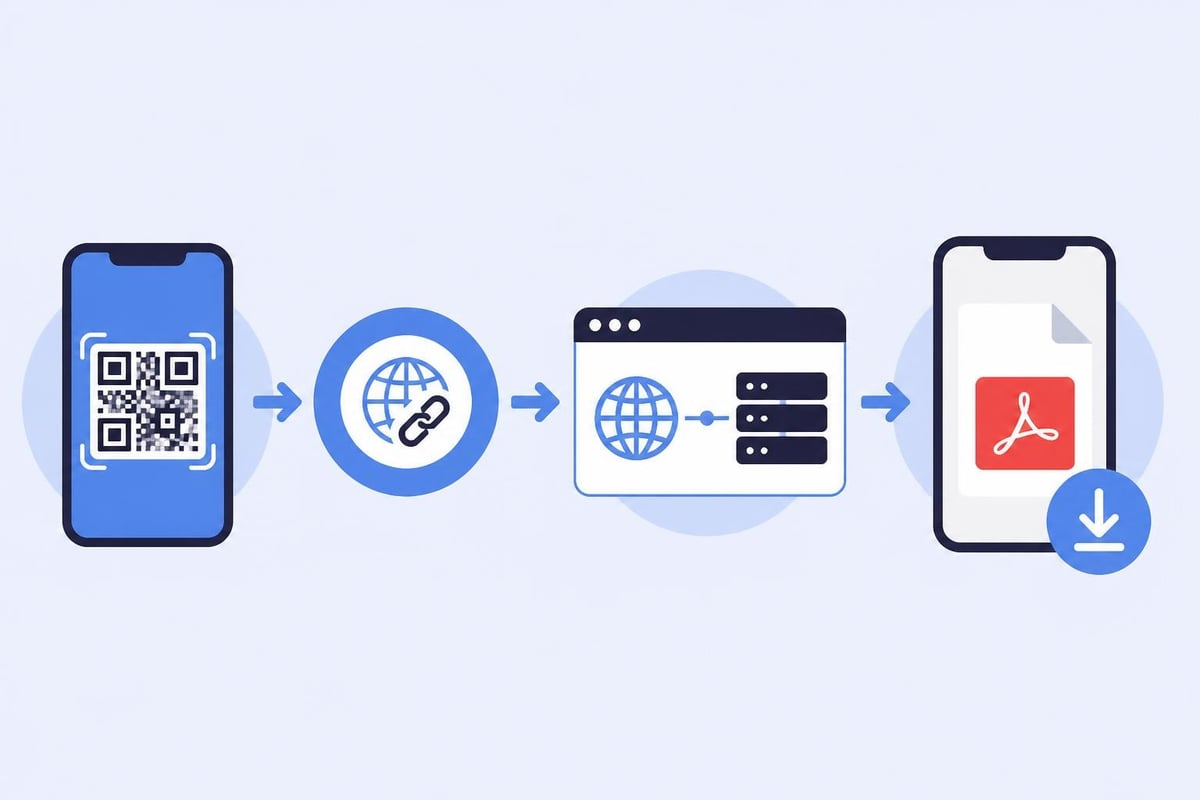
Step-by-Step Process to Create QR Code for PDF
Creating a QR code for your PDF document requires four fundamental steps: hosting, URL generation, QR code creation, and testing. Each phase has multiple implementation options depending on your technical expertise and requirements.
Phase 1: Host Your PDF File
Before you can create QR code for PDF access, you need a publicly accessible URL. Choose a hosting solution based on your needs:
| Hosting Option | Best For | Pros | Cons |
|---|---|---|---|
| Cloud storage (Google Drive, Dropbox) | Quick sharing, personal use | Free, easy setup | Generic URLs, limited analytics |
| Website hosting | Business documents, branding | Custom domain, professional appearance | Requires website maintenance |
| Document management platforms | Large organizations, version control | Advanced permissions, audit trails | Higher cost, complexity |
| Link management platforms | Marketing campaigns, tracking | Analytics, dynamic updates, short URLs | Subscription cost |
After uploading your PDF, ensure the sharing settings allow public access. For Google Drive, right-click your file, select "Share," and choose "Anyone with the link." Copy the sharing URL-this is what you'll encode into your QR code.
Phase 2: Optimize Your URL
Raw sharing URLs from cloud services are often long and cumbersome. A Google Drive link might contain 50-100 characters including IDs and parameters. These lengthy URLs produce dense, complex QR codes that are difficult to scan.
URL optimization strategies:
- Use a URL shortener to compress long links into manageable formats
- Create custom short links with branded domains for professional appearance
- Remove unnecessary tracking parameters that bloat the URL
- Test the shortened URL to ensure it redirects correctly
The Brown University IT guide on sharing webpages as QR codes demonstrates practical workflows for creating shareable links that work well when encoded.
Phase 3: Generate Your QR Code
Multiple methods exist to create QR code for PDF links, from simple online generators to custom development. Your choice depends on volume, customization needs, and technical capabilities.
Free online QR generators offer the quickest path. Visit any reputable QR code generator website, paste your PDF URL, and download the generated image. These tools work well for one-off projects and basic needs.
Developer-built solutions provide complete control. The GeeksforGeeks tutorial on building a QR code generator walks through creating a custom generator using HTML, CSS, and JavaScript. This approach suits organizations that need to generate QR codes at scale or integrate the functionality into existing systems.
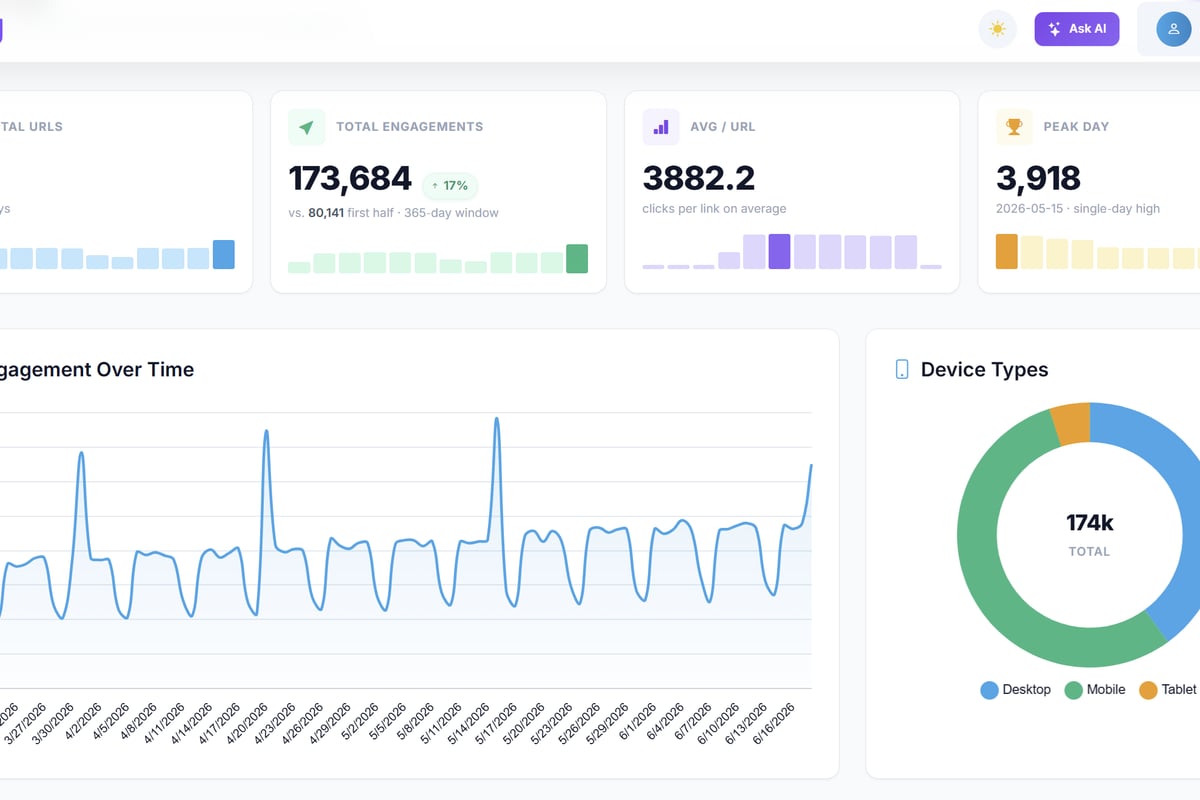
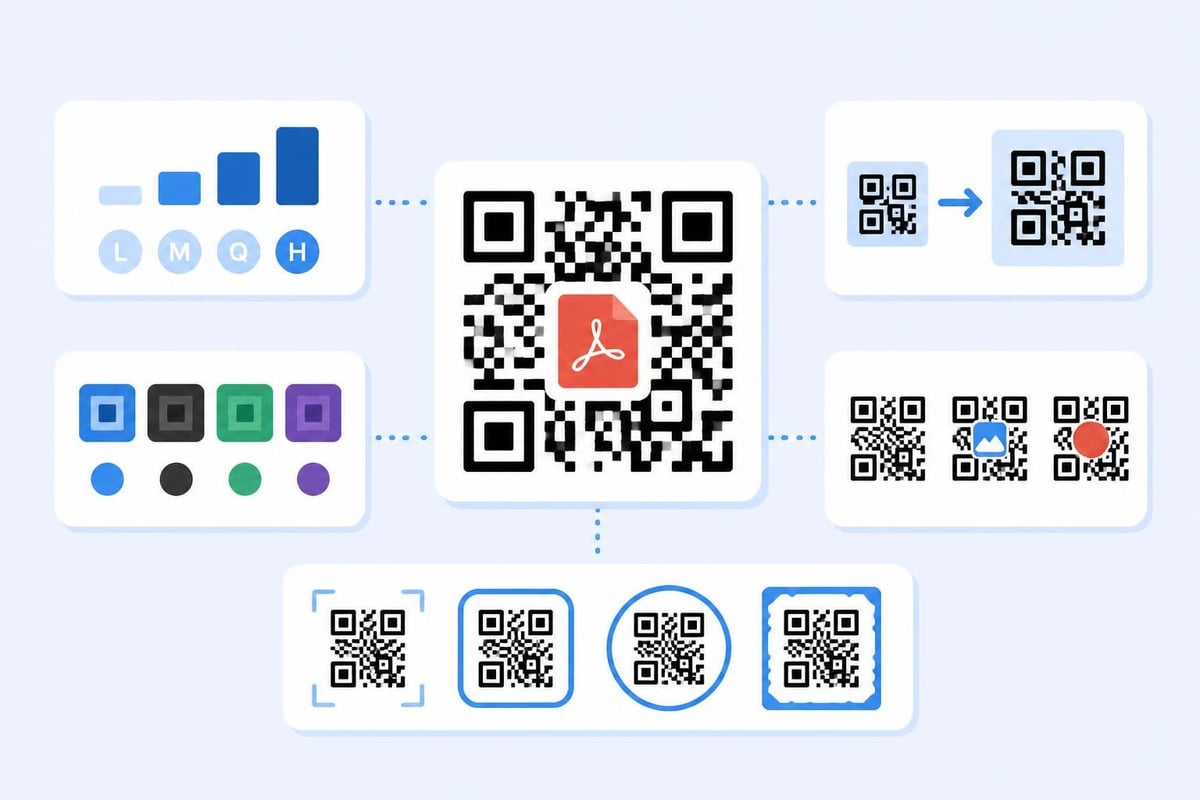
Link management platforms combine URL shortening, QR generation, and analytics in unified workflows. These platforms enable you to create, customize, and track QR codes from a single dashboard.
When you need robust link tracking alongside QR code generation, platforms like Trimy offer comprehensive solutions. Trimy lets you shorten your PDF hosting URL, generate a customized QR code, and track every scan with detailed analytics-all while maintaining branded short domains that reinforce your professional image.
Phase 4: Test and Deploy
Never distribute a QR code without thorough testing. Scan your generated code with multiple devices and QR reader apps to verify functionality.
Testing checklist:
- Scan from various distances (6 inches to 6 feet)
- Test with different smartphone models (iOS and Android)
- Verify the PDF opens correctly on mobile browsers
- Check loading speed on cellular networks
- Confirm the PDF is readable on small screens
Print your QR code at the intended size and scan the physical version. Digital screens and printed materials can render QR codes differently, affecting scannability.
Best Practices for PDF QR Code Implementation
Creating functional QR codes represents just the beginning. Strategic implementation ensures maximum engagement and measurable results.
Size and Placement Considerations
QR code size must balance visibility with available space. The minimum recommended size is 2 x 2 centimeters (approximately 0.8 x 0.8 inches), but larger codes scan more reliably from greater distances.
Calculate appropriate sizing:
- Business cards: 1.5 - 2 cm square
- Flyers and posters: 3 - 5 cm square
- Banners and signage: 10+ cm square, depending on viewing distance
- Product packaging: 2 - 3 cm square
Maintain adequate "quiet zone"-the white space surrounding the QR code. This margin should equal at least four times the width of a single module (the smallest square in the QR pattern). Without proper quiet zones, scanners struggle to identify the code's boundaries.
Color and Contrast Optimization
While black-on-white remains the most reliable combination, you can customize colors for brand consistency. Follow these guidelines:
- Ensure high contrast between foreground and background
- Keep the foreground darker than the background
- Avoid light colors on light backgrounds
- Test colored QR codes extensively before printing
- Consider printing a black-and-white backup
Accessibility and Inclusive Design
When you create QR code for PDF distribution, consider users who cannot scan QR codes due to visual impairments, device limitations, or technical constraints. The W3C guidance on accessible authentication explains requirements for alternative access methods when QR codes serve as primary access points.
Accessibility implementations:
- Always print the full URL beneath the QR code
- Provide alternative access methods (typed URLs, email distribution)
- Ensure PDFs themselves follow W3C PDF accessibility techniques
- Include descriptive text explaining what the QR code contains
- Use clear, simple language in instructions
Security and Privacy Considerations
QR codes present unique security challenges. Users cannot easily verify where a QR code leads before scanning, creating opportunities for malicious redirection.
Protecting Your Audience
When you create QR code for PDF sharing, implement security measures that protect both your content and your users.
- Use HTTPS exclusively for PDF hosting URLs to encrypt data transmission
- Verify QR code destination before printing or distributing
- Monitor for unauthorized copies that might redirect to malicious sites
- Implement access controls for sensitive documents
- Consider expiration dates for time-sensitive materials
The NIST guidance on machine-readable optical labels addresses security and privacy considerations when using QR codes for enrollment and linking workflows, applicable to PDF distribution in regulated industries.
Dynamic vs. Static QR Codes
Understanding the difference between static and dynamic QR codes affects both security and flexibility.
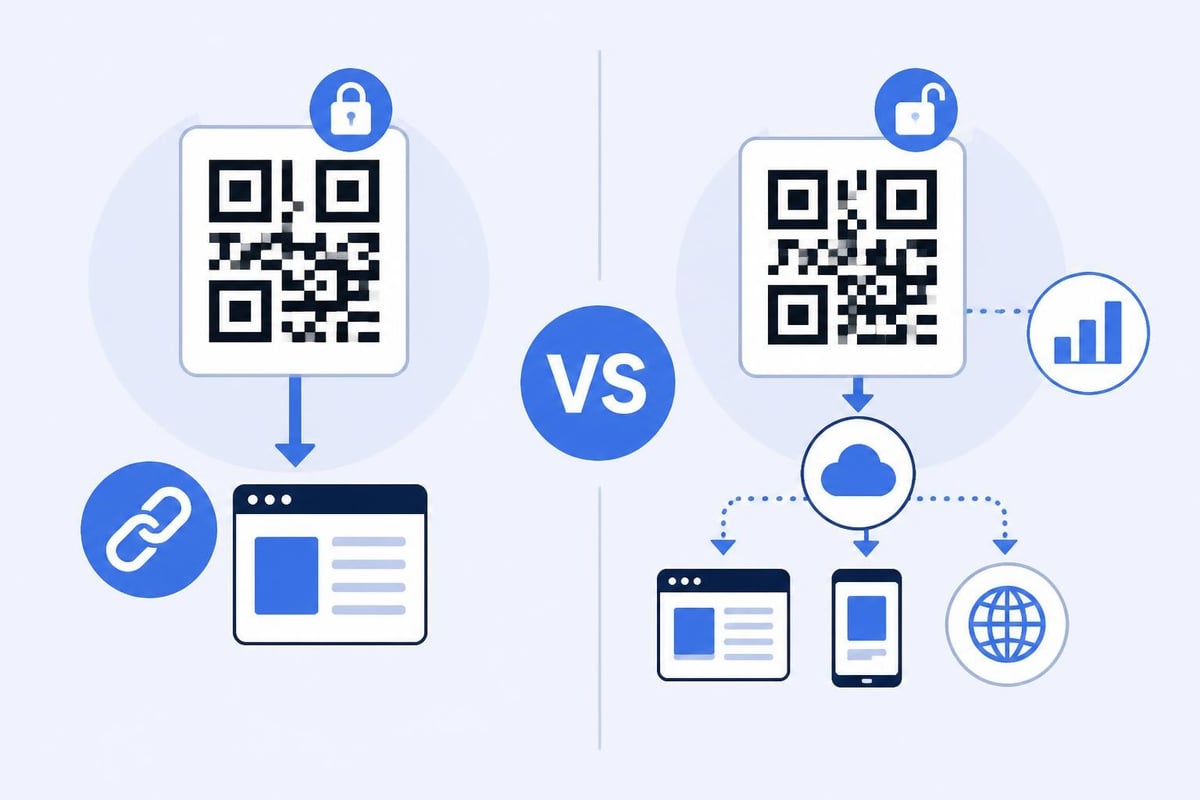
| Feature | Static QR Codes | Dynamic QR Codes |
|---|---|---|
| URL editing | Impossible after creation | Can update destination anytime |
| Tracking | No built-in analytics | Detailed scan metrics |
| Security | Fixed destination, more predictable | Requires trusted redirect service |
| Lifespan | Permanent | Depends on service provider |
| Best for | Permanent resources, offline use | Campaigns, updatable content |
Dynamic QR codes use a short redirect URL that points to a management platform, which then forwards users to your actual PDF. This architecture enables you to update the PDF destination without reprinting the QR code. The CueSlate guide on creating updatable PDF QR codes demonstrates this approach with practical examples.
Advanced Use Cases and Analytics
Organizations that create QR code for PDF distribution at scale benefit from sophisticated tracking and optimization capabilities.
Campaign Tracking and Attribution
When QR codes support marketing campaigns, understanding scan patterns becomes crucial. Advanced link management platforms provide granular analytics:
- Geographic data: Where scans occur (city, country, region)
- Temporal patterns: When users scan (hour, day, week)
- Device information: Operating systems and browsers
- Scan sources: Physical locations or marketing materials
- Conversion tracking: Actions taken after viewing the PDF
This intelligence transforms QR codes from simple sharing tools into measurable marketing channels. You can correlate PDF engagement with campaign performance, optimize placement strategies, and calculate ROI on printed materials.
A/B Testing QR Code Placements
Different placements and designs yield varying engagement rates. Systematic testing reveals optimal approaches:
Test variables:
- QR code size and prominence
- Accompanying call-to-action text
- Page placement (above fold, bottom, sidebar)
- Color schemes and branding elements
- Incentives or value propositions
Create multiple QR codes (each with unique tracking URLs) pointing to the same PDF. Deploy them in different contexts and measure scan rates. This data-driven approach replaces guesswork with evidence.
Version Control and Content Updates
Professional PDF distribution often requires version management. When you create QR code for PDF documents that undergo regular updates, implement systematic versioning:
- Use descriptive filenames that include version numbers or dates
- Maintain an archive of previous PDF versions
- Implement dynamic QR codes that allow destination updates
- Document change logs for compliance and reference
- Test updated PDFs before switching the redirect
This structured approach prevents confusion when users scan older printed materials that still circulate after you've updated the content.
Industry-Specific Applications
Different sectors leverage PDF QR codes for specialized purposes, each with unique requirements and constraints.
Education and Training
Educational institutions create QR code for PDF syllabi, reading materials, and assignment instructions. Students scan codes in textbooks or on classroom displays to access supplementary resources instantly.
Educational implementations:
- Course syllabi printed in planners with QR access to detailed versions
- Laboratory procedures available via wall-mounted QR codes
- Library resources linked from physical book displays
- Campus maps with QR codes linking to building directories (PDF format)
Healthcare and Medical Documentation
Healthcare providers use PDF QR codes for patient education materials, consent forms, and discharge instructions. Regulatory compliance requirements demand careful attention to privacy and security.
Medical applications must consider HIPAA compliance, ensuring QR-linked PDFs don't inadvertently expose protected health information. Use secure, authenticated access for patient-specific documents.
Retail and Product Information
Retailers create QR code for PDF product manuals, specification sheets, and warranty information. This reduces packaging size while providing comprehensive documentation.
Retail advantages:
- Reduced printing costs for detailed documentation
- Multilingual support through multiple PDF versions
- Updated information without product recalls
- Environmental benefits from reduced paper usage
Event Management and Conferences
Event organizers distribute programs, speaker bios, and venue maps through QR codes. This approach enables last-minute updates and reduces printing costs for large gatherings.
Conference badges can include QR codes linking to personalized agendas (PDF format), presentation slides, or networking information. Attendees access relevant materials throughout the event by scanning codes on signage.
Technical Optimization and Performance
When you create QR code for PDF at scale, technical optimization ensures reliable, fast access across diverse networks and devices.
PDF File Optimization
Large PDF files strain mobile networks and frustrate users. Optimize files before distribution:
Compression techniques:
- Reduce image resolution to 150 DPI for screen viewing
- Convert images to appropriate formats (JPEG for photos, PNG for graphics)
- Remove embedded fonts when system fonts suffice
- Eliminate unnecessary metadata and comments
- Use PDF compression tools to reduce file size without quality loss
Target file sizes under 5 MB for mobile distribution. Users on cellular networks appreciate faster loading times.
Caching and CDN Considerations
For high-traffic PDF distribution, implement content delivery networks (CDNs) that cache files at edge locations worldwide. This reduces latency and improves loading speed regardless of user location.
Cloud storage providers often include CDN functionality. Configure caching headers to balance freshness with performance.
Mobile-First PDF Design
Design PDFs with mobile consumption in mind, since QR code scanners use smartphones:
- Use readable fonts at small sizes (minimum 12-point)
- Design single-column layouts that reflow on narrow screens
- Include clickable table of contents for navigation
- Test readability on various screen sizes
- Optimize orientation for portrait viewing
Mobile-optimized PDFs create better user experiences and higher engagement rates.
Measurement and Continuous Improvement
Creating effective QR codes for PDF distribution requires ongoing measurement and refinement.
Key Performance Indicators
Track metrics that reveal both usage patterns and content effectiveness:
| Metric | What It Measures | Why It Matters |
|---|---|---|
| Scan rate | QR code scans vs. impressions | Placement and design effectiveness |
| Click-through rate | PDF opens vs. scans | Link reliability and user interest |
| Engagement time | Duration viewing PDF | Content relevance and quality |
| Geographic distribution | Scan locations | Campaign reach and targeting |
| Device breakdown | iOS vs. Android scans | Compatibility and optimization |
Iterative Optimization Process
Use analytics to drive continuous improvement:
- Establish baseline metrics for initial deployments
- Identify underperforming elements (low scan rates, poor engagement)
- Formulate hypotheses about potential improvements
- Test variations with different designs or placements
- Measure results and compare to baseline
- Implement winners and continue testing
This cyclical process transforms PDF QR code campaigns from static distributions into dynamic, optimizing systems that improve over time.
Mastering how to create QR code for PDF distribution transforms document sharing from a cumbersome process into an instant, measurable channel. By combining proper hosting, optimized URLs, strategic design, and comprehensive analytics, you turn simple QR codes into powerful marketing and communication tools. Trimy provides the link intelligence platform you need to generate QR codes, track engagement, and optimize your PDF distribution campaigns with advanced analytics and A/B testing capabilities that transform every scan into actionable business intelligence.